After selecting a destination and tapping Navigate, the application calculates the route and displays the route preview screen.
The route preview shows the calculated route, available alternatives, route details, and controls for modifying the route before navigation starts. The calculated route is highlighted in purple. If alternative routes are available, you can select a different option before starting navigation.
If a section of the route cannot fully comply with the restrictions defined in the selected vehicle profile, that section is highlighted in turquoise.
The route preview screen contains the following elements:
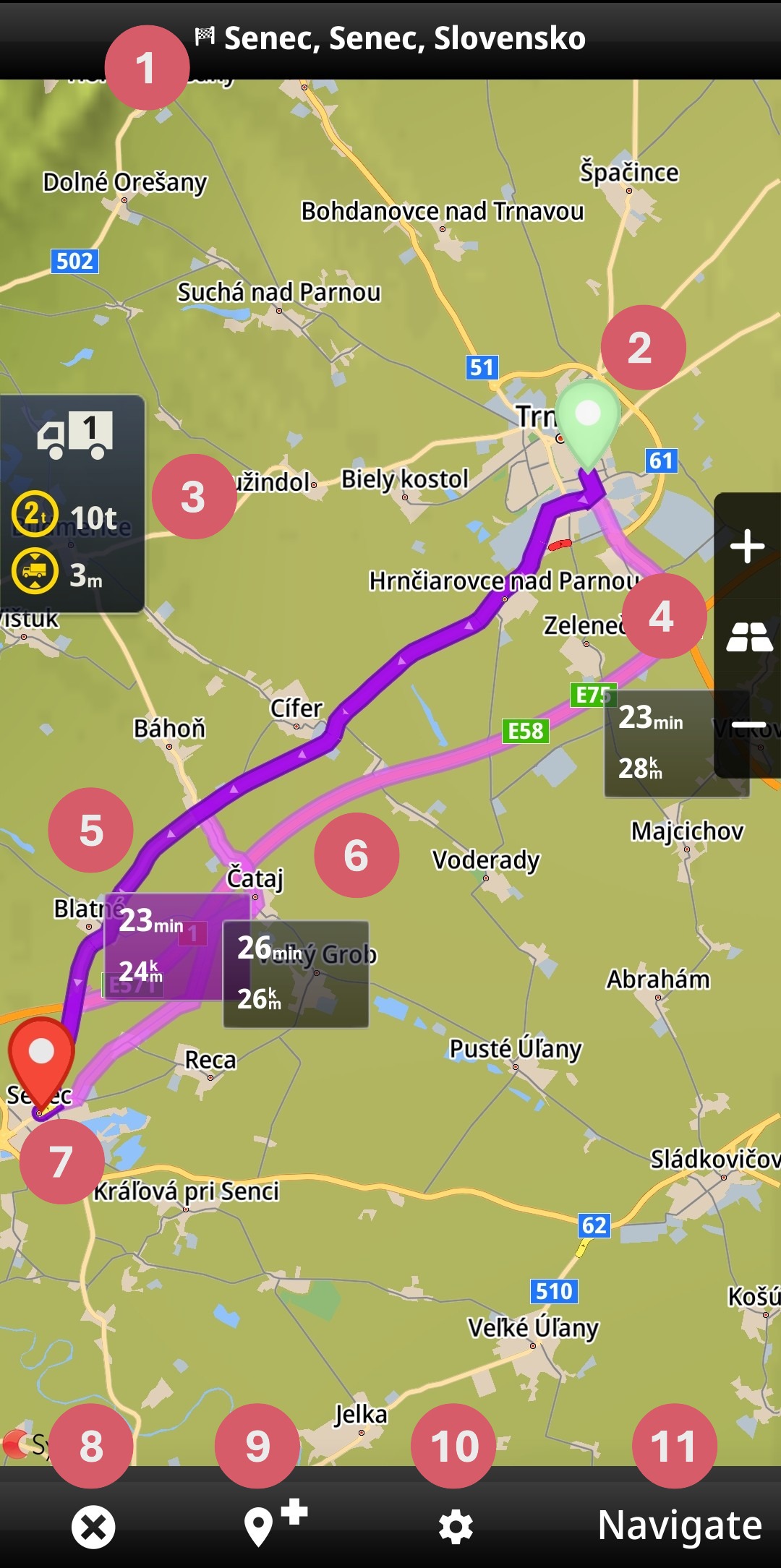
1. Destination address
2. Start point marker
3. Current vehicle profile
4. Zoom controls and 2D/3D view switch
5. Calculated route
6. Alternative routes
7. Destination marker
8. Cancel route
9. Add waypoint
10. Route summary
11. Start navigation