Not active route
Allows you to always have your most frequently used routes ready. You can select any saved route and use it immediately, or delete it if you no longer need it.
You can view and use your saved route by navigating through Menu → Route → Load route.
To learn how to save a route, see the Saving a Route article.
Active route
If a route is active, navigate through Menu → Route to view an overview of the route and its options.
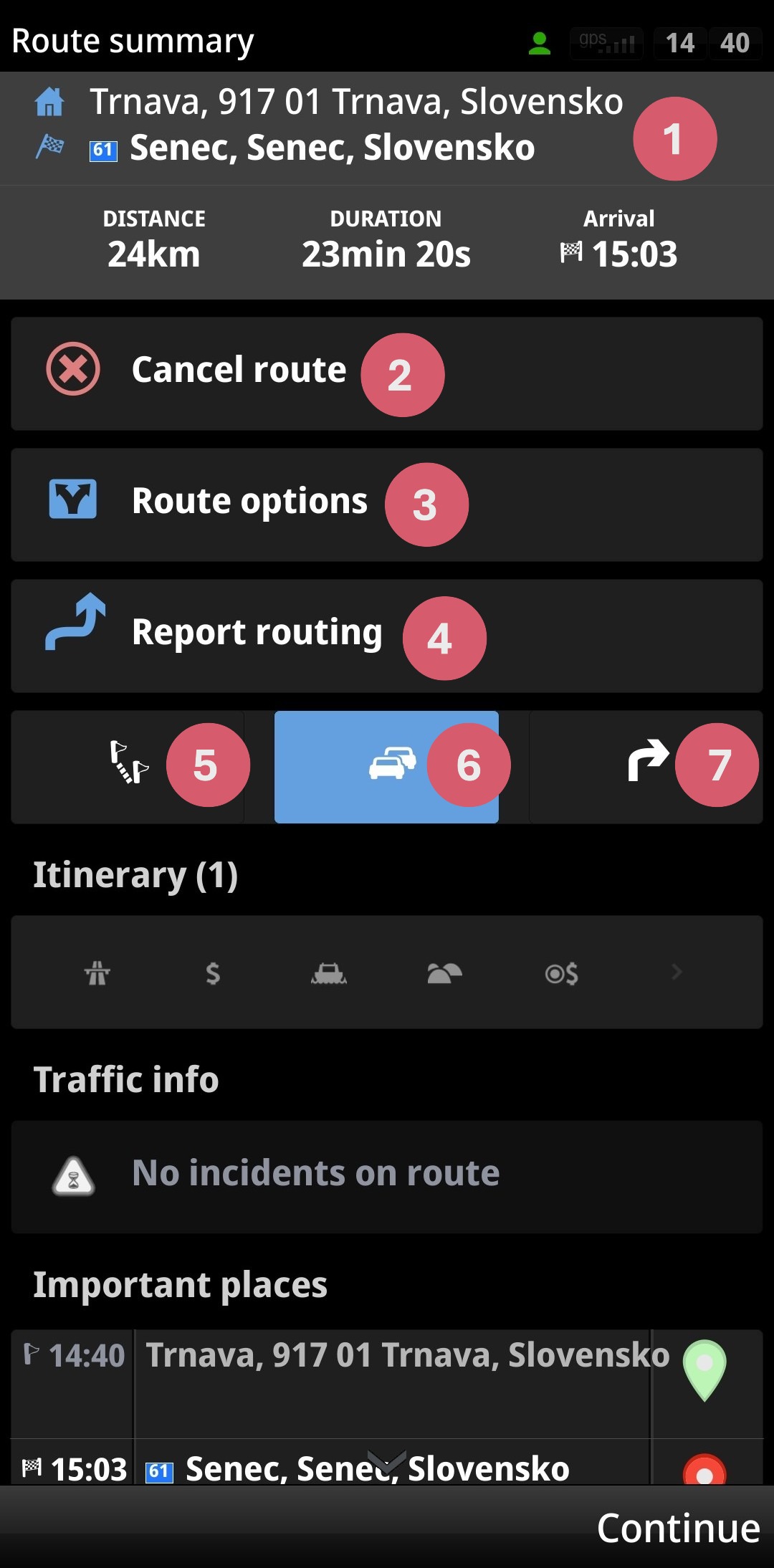
1. Basic route information – start, destination, distance, duration, estimated time of arrival
2. Option to Cancel route
3. Route options
5. Itinerary – displays only individual points on the route along with the number of kilometers between them and the arrival time
6. Avoid (option to specify the distance by which you want to avoid specific roads) and traffic information
7. Step-by-step instructions
Route options:
Demonstrate – plays a preview of the route so you can get a better idea of what the route looks like. During playback, a film clapperboard icon will appear in the lower right corner – use it to stop, pause, speed up or slow down the preview
Show on map
Display POI on the route
Optimize route – useful if you have added waypoints – the app will improve the route to give you the best possible estimated time of arrival
Reset to defaults